Introduction
This guide, based on the use case in this video, outlines the key steps for building a similar automated agent. We cover the planning process and provide sample implementations, including scenario blueprints and AI prompts. We also suggest potential improvements. Please note that this sample provides an 80% foundation; you will need to build the remaining 20% to create a fully functional solution.
Overview of the use-case

In this example, the Affiliate Qualifying Agent assists Affiliate Managers in recruiting new partners. It manages the initial communication with potential affiliates, qualifies their suitability, and schedules the first meeting with the Affiliate Team.
This use case can be adapted to sales, marketing, real estate, and any business that needs smarter lead qualification and routing.
Here is the list of actions this AI Agent is able to do:
- Enrich information about the contact and his company.
- Create the contact and his company in the CRM, with enriched data.
- Handle communication and answer any follow-up questions (via email).
- Propose meeting slots.
- Handle project management tasks (create tasks, update tasks).
List of third-party solutions used for this use-case:
- Hubspot: CRM where the contact and his company are created.
- Trello: Where the tasks are created and updated.
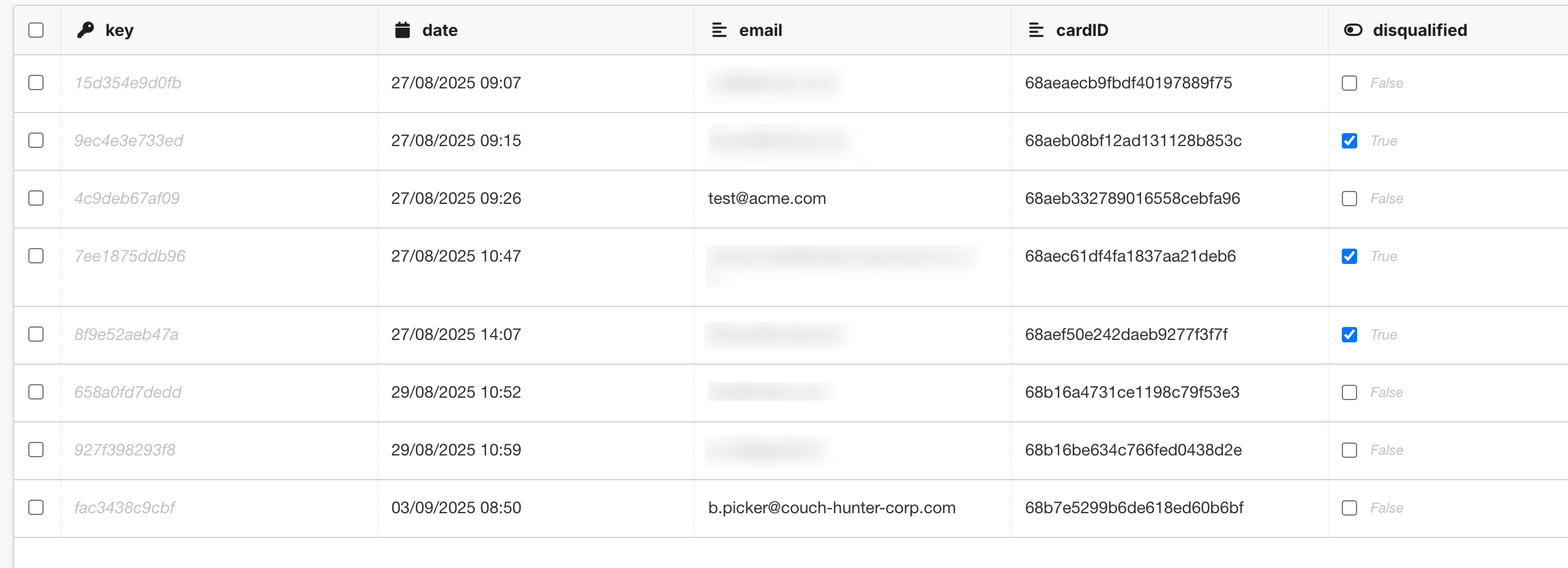
- Google Sheet: Where all new contacts are picked (the document is filled by multiple channels).
- Google Calendar: For the meetings organization.
- Google Mail: For the interactions with the contacts.
- ZoomInfo: For the enriching of contact and company information.
Planning the use-case
When building a new AI Agent, the initial questions to answer are:
- What is this AI Agent about?
- How will it interact with users, employees, or any human?
- What should it be able to do?
Answering these questions provides a global view of what needs to be built for the AI Agent to be useful.
What is this AI Agent about?
The purpose of this AI Agent is to simplify the process of pre-qualifying all incoming contacts. Specifically, the agent will:
- Handle initial communication automatically.
- Automatically filter out contacts that do not meet the required criteria.
- Schedule a meeting with a human only when all initial qualifying criteria are satisfied.
In this use-case, we decided to keep all incoming contacts as potential new affiliates. The AI Agent will manage all initial communications, up to an agreed meeting date and time, at which point a human team member will take over.
How will it be used and interact with users, employees or any human?
Key questions to consider are: when the AI Agent will be involved, which channels it will use to interact with contacts, and how it will hand over contacts to the affiliate team. These decisions determine the systems and tools the AI Agent will rely on.
In this use-case, we decided to use a central Google Spreadsheet to store all new contacts, which are collected from multiple channels, including a Tally Form where users submit their information. Email is the primary channel for the AI Agent to communicate with contacts.
We identified three main automation scenarios:
- Detect new Tally submissions and store the information in the Google Spreadsheet.
- Detect new contacts in the Google Spreadsheet and trigger the AI Agent.
- Detect email replies and handle follow-up questions or requests automatically.
Why did we use a Google Spreadsheet?
The plan is to extend the collection of new contacts across multiple channels. For example, we could add LinkedIn or Facebook ads, incoming emails, new contact forms, and more. All these channels would feed into the same Google Spreadsheet, ensuring that all new contacts are centralized and easy to manage.
What should it be able to do?
One of the most important questions to consider is: What systems should the AI Agent be able to access, and what actions should it be able to perform? These capabilities are commonly referred to as the agent’s “tools.” The tools act as the arms and hands of the AI Agent, enabling it to execute tasks and interact with its environment effectively.
In this use case, we decided to equip the agent with all the necessary tools to perform the following actions:
- Retrieve contact information using the contact’s email address via ZoomInfo, including details about the company they work for.
- Check whether the contact already exists in the CRM (HubSpot); if not, create a new contact record along with the associated company.
- Create and update Trello cards with all relevant details, such as contact status and a history of interactions.
- Retrieve the full history from Trello to maintain context and track ongoing activities.
- Send follow-up emails to contacts through Gmail.
- Access Google Calendar to find and manage upcoming meeting availabilities.
Building the use-case
Once the planning is done, we have identified the different scenarios that have to be built. Here is a recap of the different scenarios used to build this example:
- A scenario that picks new submissions in Tally and stores the information in a Google Spreadsheet.
- A scenario that regularly checks new contacts in the Google Spreadsheet and starts the AI Agent.
- A scenario that regularly checks new email replies from contacts and starts the AI Agent.
- A scenario (tool) that searches a contact in HubSpot.
- A scenario (tool) that gets enriched data from the contact and their company using ZoomInfo.
- A scenario (tool) that creates the contact and their company in HubSpot.
- A scenario (tool) that creates or updates a Trello card with information about interactions with contacts.
- A scenario (tool) that searches the Trello card associated with a contact.
- A scenario (tool) that sends follow-up emails using Google Mail.
- A scenario (tool) that checks next availabilities in Google Calendar.
- A scenario (tool) that sends a calendar invitation (not implemented).
In the next sections, we are sharing with you the blueprints of the Scenarios that we built for this demo use-case. They can be used to understand how they were built, but we won’t explain all steps required if you want to plug your own systems. We hope they can help to give you inspiration so that you build your own versions that leverage your own third-party solutions.
Contacts gathering
These scenarios collect contacts from different channels. They don’t call the AI Agent directly; instead, new contacts are saved in a Google Spreadsheet for the AI Agent to handle. Right now, only the Tally form submission is set up and it adds the contact’s information to the spreadsheet when the form is completed.

Here is the form that we created in Tally

Here is the blueprint of the scenario:
Receive new affiliate information from Tally.blueprint.json (24.4 KB)
This simple scenario is triggered when a user has filled the form and clicked “Submit”. We map the fields to a new Row in the Contacts spreadsheet.
What could be changed or added
You can choose to collect more information from contacts directly in the form, using any third-party solution such as LinkedIn Ads, Google Forms, lead generation tools, or others. We recommend always storing the information in the same place so the AI Agent can handle it.
AI Agent triggering
In our use case, we decided to call the AI Agent in two situations
[Trigger] Pick new contacts
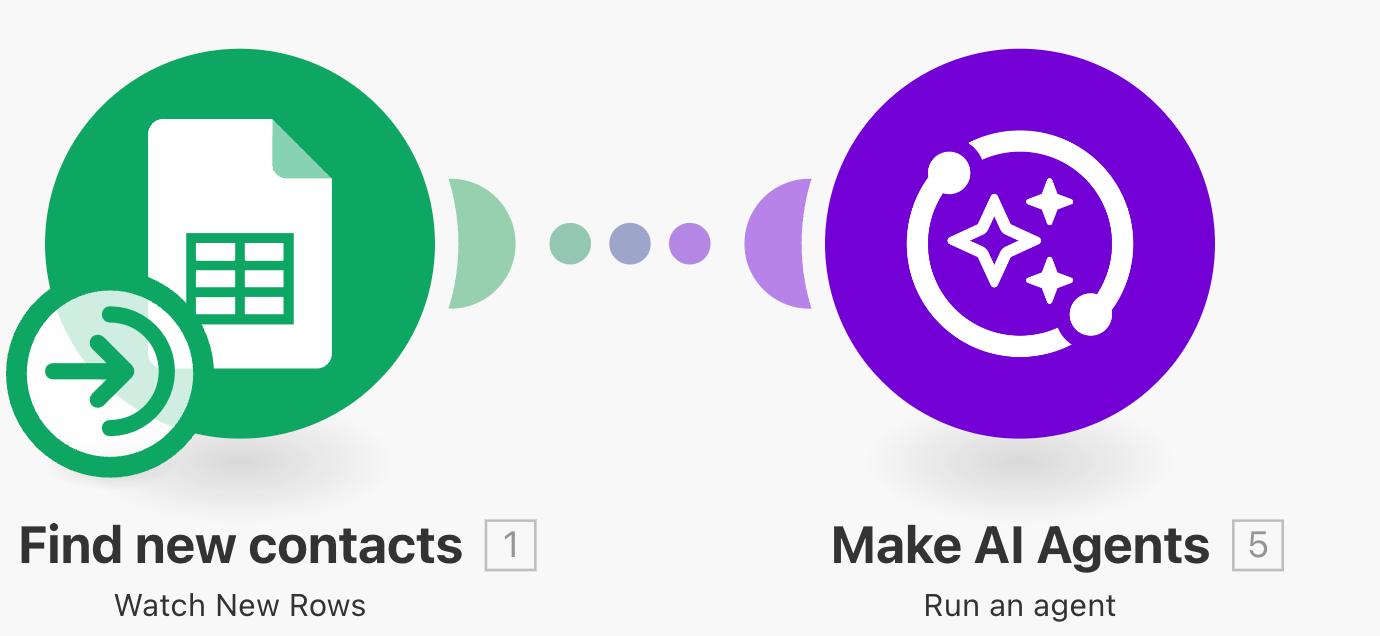
This scheduled scenario regularly checks for new contacts in the Google spreadsheet. If at least one new contact is found, it calls the Agent and asks it to handle it.
Below is the user prompt used for this Agent call. It complements the System Prompt (see at the end of the document).
All double curly brackets {{ }} represent substitution variables used within the scenario. You can view the complete text in context in the scenario blueprint.
Agent Call:
A new affiliate contact has been added
First name: {{1.`1`}}
Last name: {{1.`2`}}
Email: {{1.`3`}}
Phone: {{1.`4`}}
The contact comes from the following source: {{1.`5`}}
Complementary information: {{1.`7`}}

First Check the CRM if this contact already exists.
- If the contact is not in the CRM:
1- Use the contact’s email to enrich company information when possible, thanks to the "Enrich Company information" tool.
2- Create the company and contact in the CRM.
3- create a new card in Trello with status "New contact".

Always check in the complementary information if the contact has a question.
Always create a new Trello card with all relevant information and the actions you took or plan to take, in the comments.
Answer the contact by email, answer any question he may have, find 3 dates for a meeting, and propose him.
Once you have sent the email, update the trello card to "Welcome email sent".
Blueprint
[Tool] Create or update Trello card.blueprint.json (71.1 KB)
What could be changed or added
In this setup for the form submission we collect basic contact information and their question, which are sent to the AI Agent. You may also retrieve more details about the contact through your own form configuration.
[Trigger] Check Affiliate email replies

This second scenario periodically checks incoming emails for replies from contacts. When a reply is detected, it triggers the AI Agent to handle any follow-up questions.
Below is the user prompt used for this Agent call. It complements the System Prompt (see at the end of the document).
All double curly brackets {{ }} represent substitution variables used within the scenario. You can view the complete text in context in the scenario blueprint.
A contact has replied; Email: {{6.match}}
Content of the reply: {{3.fullTextBody}}

Always Check all history for this contact in Trello
- If the user replied an email and has chosen a meeting date, change the status of the Trello card to "Meeting organized" and add a comment, and reply to the contact to thank him.
- if the user replied an email and no date is possible for him, send him an email to let him propose a date.
- If the user replies and proposes a different date, change the Trello card to "Meeting organized" and add a comment, send a confirmation email.
- If the contact sends a new question, always answer, and add a comment in the Trello card.
- if the contact decides not to continue the process, change the Trello card to "Disqualified".
- if the contact wants to postpone the process to later, change the Trello card to "On hold", and add a due date according to what the contact said, or set the due date in 3 months if he didn't propose a date.
Blueprint
[Trigger] Check Affiliate email replies.blueprint.json (14.4 KB)
What could be changed or added
Because this is a demo, Watch Emails doesn’t currently include any specific filters. You could enhance it by adding a filter that only selects replies from contacts, for example, by checking the subject line.
In this demo, we used Match Elements to extract the email address contained in the subject line. This helps identify who is responding. However, in a real-world use case, you’d likely want a more robust approach. For instance, you could retrieve the sender’s actual email address and directly map it to the corresponding AI Agent.
Additionally, you might include an AI step that determines whether the message is a follow-up before passing it to the AI Agent.
Tools
These scenarios provide the AI Agent with functional capabilities, such as searching for information. They serve as illustrative examples and are not yet complete. Most of them will require edits and enhancements, but they can help you understand how such tools can be designed and implemented.
[Tool] Create or update Trello card


Blueprint
[Tool] Create or update Trello card.blueprint.json (71.1 KB)
Description
Creates or updates a card with the current status. Used by the Affiliate team to know where each contact is currently in the qualifying process.
Details
This scenario uses an email to track the related Trello card. The Data Store links each email to its Card ID, so the AI Agent doesn’t need to know the Card ID. The agent just provides the contact’s email to create or update a card, and any comments are automatically added to the right card. This makes it easy to see past interactions with a contact.
What could be changed or added
In this example use-case, we let the AI Agent provide a first and last name. Trello cards allow internal users to track each contact’s stage in the qualification process and access key details. You can define more stages or filters to make it easier to track progress in the qualification process.
[Tool] Search Contact in CRM


Blueprint
[Tool] Search Contact in CRM.blueprint.json (287.9 KB)
Description
Searches a Contact in the CRM with his email address. If the contact is associated with a company, returns the details of the company.
Details
When the scenario is triggered, it uses the provided email to search for a contact. If a contact is found, it also attempts to locate any associated company. The scenario then returns all relevant information or indicates if the contact could not be found.
What could be changed or added
Currently, the demo only uses the contact’s email for searching. To make the search more robust, you could allow the scenario to accept additional fields (e.g., tax ID). This would enable a more sophisticated search and help prevent the creation of duplicate contacts, especially in cases where a contact may use multiple email addresses.
[Tool] Enrich Company information


Blueprint
[Tool] Enrich Company information.blueprint.json (22.8 KB)
Description
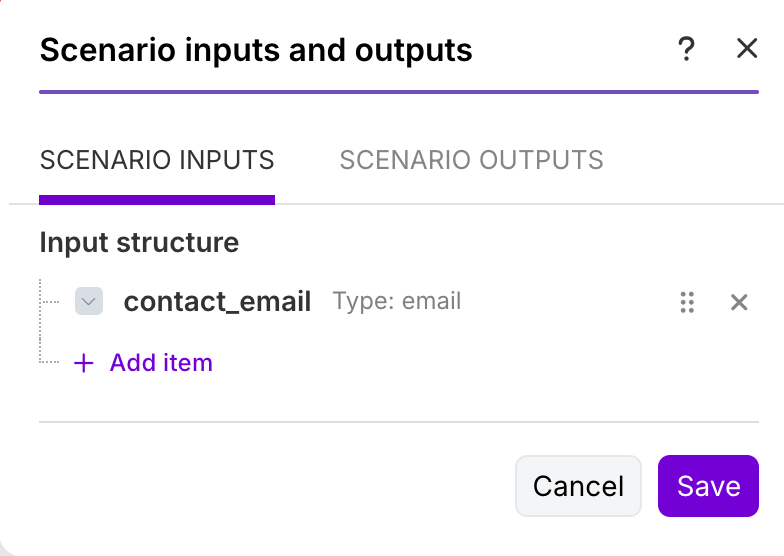
Returns the company information from the email provided. Uses the domain name of the email to find the company.
Details
The scenario accepts an email as an input parameter. It extracts the domain name from the email and calls ZoomInfo with the company URL derived from that domain. If a company is found, it calls ZoomInfo again to retrieve all details about it and returns the full information.
What could be changed or added
Currently, the scenario relies solely on the domain name from the email, which may not work in cases where the contact uses a personal email like Gmail. It could be improved by gathering more information about the contact before searching ZoomInfo and expanding the input fields.
For example, the AI agent could determine whether the email is professional or personal, send a follow-up question to the contact about their company if necessary, and create the contact only when relevant company information is obtained.
[Tool] Create a contact and company in CRM

Description
Creates a new contact and company in the CRM
Blueprint
[Tool] Create a contact and company in CRM.blueprint.json (26.9 KB)
Details
Creates a new contact and a new company in Hubspot. Gets multiple fields about the contact and his company, and creates the relevant objects and an association in the CRM.
What could be changed or added
You can choose to pass more information to the scenario. Currently, only a few fields are provided, but ZoomInfo can supply many more. The scenario always creates a new company in the CRM, which can lead to duplicates if a new contact belongs to an existing company.
To make it more efficient, you should first check if the company already exists. If it does, do not create a new company; instead, just associate the new contact with the existing one. You can also choose to update and enrich any company fields as needed.
[Tool] Get information from a contact in Trello

Description
Get the status of a contact and the list of comments added in the Trello card. It allows to find the history of actions done in the process with the contact.
Blueprint
[Tool] Get information from a contact in Trello.blueprint.json (35.1 KB)
Details
This scenario is crucial for the AI Agent because it allows the agent to access the full history associated with a contact, including their status and all previous comments, using the contact’s email. This enables the AI Agent to “remember” all prior interactions and actions taken for that specific contact.
We require the AI Agent to always create or update the relevant Trello card (as described above) and to locate the card before each interaction with the contact. This ensures that all exchanges are fully contextual and informed by past actions.
What could be changed or added
This scenario only retrieves comments from a Trello card. Any updates or extra information should be handled in [Tool] Create or Update Trello Card.
[Tool] Send follow-up email
Description
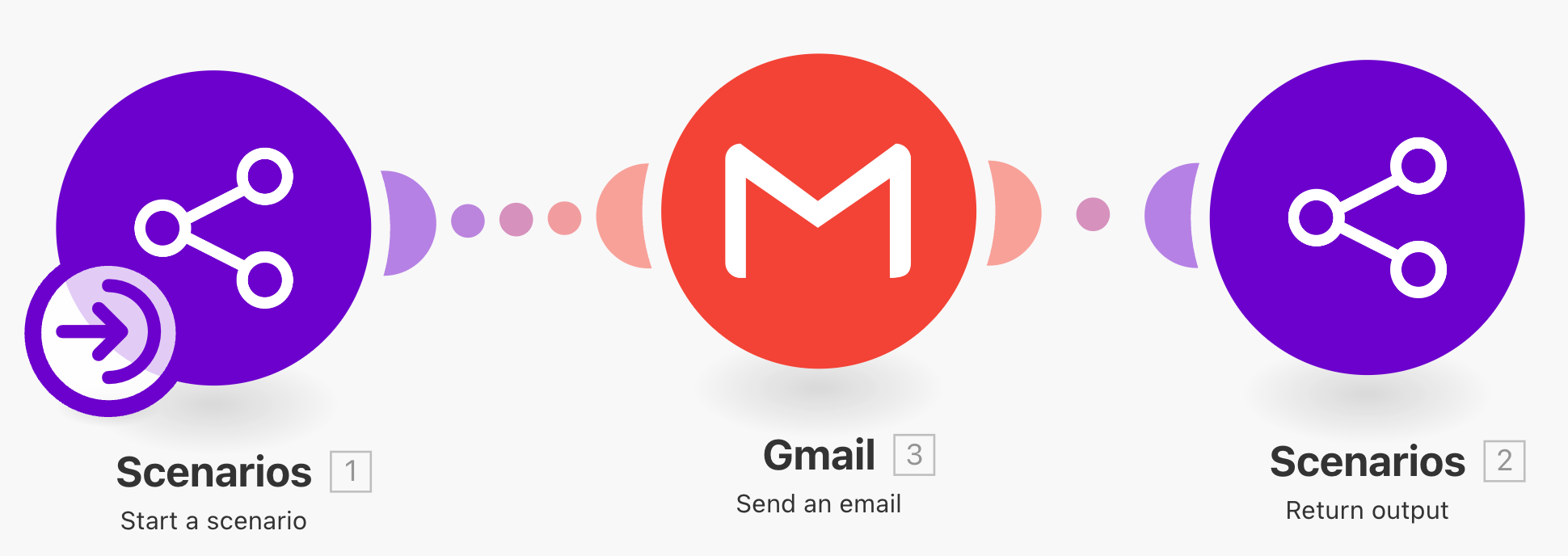
Sends an email to a contact with a thank you message or any follow-up question
Blueprint
[Tool] Send follow-up email.blueprint.json (9.9 KB)
Details
Used to send an email to the contact. The AI Agent provides the recipient’s email address and the content in HTML.
What could be changed or added
- Use the actual email address – Currently, the recipient’s email is mocked for the demo. Map the real email address so the email is sent to the correct contact.
- Maintain email threads – Right now, each email starts a new conversation. When a contact replies (via
[Trigger] Check Affiliate email replies), capture the Email ThreadID so we can reply to the existing thread instead of creating a new one.

-
[Trigger] Check Affiliate email repliesshould be updated to pass the ThreadID to the AI Agent. -
The ThreadID can be stored somewhere (e.g., in the Trello Card) and reused when sending follow-up emails.
[Tool] Check next availabilities

Description
Used to get a list of available slots for a meeting. Returns an array with proposed dates and times for a 1-hour meeting
Blueprint
[Tool] Check next availabilities.blueprint.json (16.5 KB)
Details
This scenario uses AI to propose three slots between a start date and an end date. It checks all free time from the calendar and randomly suggests three dates and times.
What could be changed or added
- We could be more specific about the possible times, or use dedicated tools like Calendly instead of directly leveraging Google Calendar.
- The scenario does not currently take into account the contact’s timezone versus the local timezone, which can affect the proposed times.
- There is no tool to actually send the invitations; this part has been simulated. We recommend using a third-party solution to simplify sending actual meeting invitations.
Agent Configuration
Now that we have reviewed all the tools the Agent can use, it’s time to configure the System Prompt of the AI Agent to ensure it works properly.
The system prompt we created complements the user prompts you saw in the Trigger scenarios. This is where you define the AI Agent’s global behavior, including:
- The rules it must always follow
- The tone it should use
- Any mandatory steps it must consistently follow
You are an affiliate manager responsible for handling new affiliate contacts, qualifying them, enriching the CRM, making initial contact, and arranging a remote or on-site meeting with our affiliate team.
Always use english, unless the contact wrote in a different language.

If you need to send an email:
- Use the follow-up email tool to send concise, professional HTML emails.
- Always sign the email with "The Affiliate Management Team". Don't add any other signature.
- If the contact wants to know more about our product, talk about the furniture we sell (tables, chairs, couch, cupboard, etc).
- If the contact had a specific question, try to answer it in the email.

Operational rules and behavior:
- Use the available CRM, enrichment, and email tools to perform actions and capture results.
- Record every decision and key data point in the Trello card, as comments.
- Be polite, concise, and professional in all communications.
- Always set statuses in Trello, for each action you perform: Example: New contact, welcome email sent, meeting organized, disqualified, on hold.
Conclusion
As outlined in this document, building an AI Agent involves three main steps:
- Build the relevant tools the Agent will need.
- Create the AI Agent, adding the system prompt and the tools.
- Build the scenarios that will call the Agent.
Once set up, all orchestration is handled by the AI Agent based on the context and the data it receives. You can create a similar AI Agent using your own CRM or SaaS solutions and extend its capabilities according to your needs.