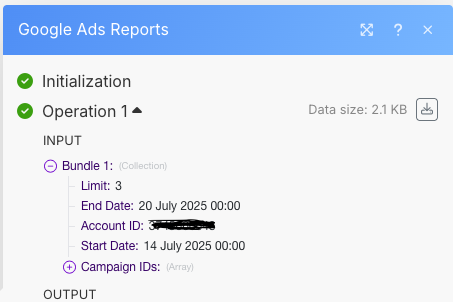
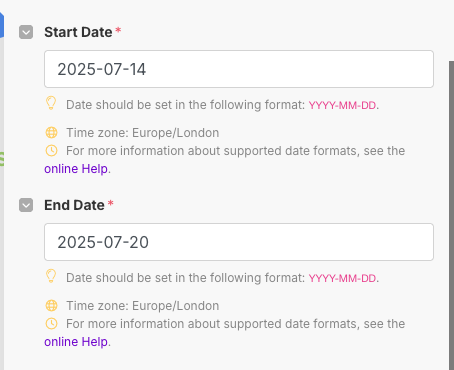
That sounds incredibly frustrating when the report dates look correct but the data doesn’t match the range you set.
It’s a surprisingly common issue with many API report modules, including some implementations of the Google Ads connector, especially when dealing with date ranges and aggregation.
The module might be correctly setting the date parameters but then pulling an aggregated view for the entire period, often presenting it as a single row that’s implicitly tagged with the end date, or it might just be filtering the results incorrectly before output.
A robust solution that gives you much more control and is far less prone to these kinds of integration bugs is to bypass the pre-built “Run a campaign report” module and instead use the Make API module in conjunction with the raw Google Ads API.
You’d set up your reporting request there, typically using the Google Ads Query Language (GAQL) to pull the specific fields you need.
To manage the authentication and the sheer volume of data often involved in this kind of extraction, especially for large date ranges or many accounts, pairing this with a server-side solution is highly recommended.
You can use Google Tag Manager on the client side to collect and fire Standard Events like ‘purchase’, ‘view_item’, or ‘add_to_cart’, ensuring accurate tracking.
For server-side processing, a tool like Stape or the use of Google Cloud Platform (GCP) functions (like Cloud Functions or Cloud Run) provides the necessary infrastructure.
The beauty of this architecture is that it separates data collection (GTM, Standard Events) from data extraction (Make API + Google Ads API).
Using the raw Google Ads API via the Make API module lets you explicitly define the segments.date in your GAQL query.
When you segment by date, the API is forced to return a separate row for each day in your selected range, solving the single-day aggregation issue you’re facing.
For example, if you request 7 days of data and segment by date, you’ll get 7 distinct rows in the API response, each with the correct daily performance data and its corresponding date.
Storing this clean, unaggregated daily data in your Google Sheet then becomes a simple mapping task within your Make scenario.
This approach is more complex to set up initially, but it provides significantly greater reliability, scalability, and control over your data retrieval.