I am unable to connect any app that uses Google OAuth authentication in Make.
 What is the problem & what have you tried?
I keep getting a 403: PERMISSION_DENIED error when trying to select a spreadsheet in the “Spreadsheet Name” field.
What I have already tried:
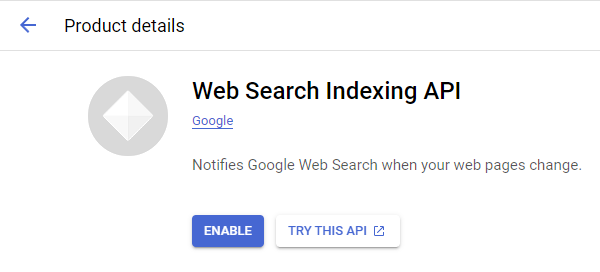
- I enabled both the Google Sheets API and Google Drive API in my Google Cloud Console.
- I configured the OAuth consent screen and created a new OAuth 2.0 Client ID (Web application type).
- I set up a new connection in Make using my custom Client ID and Client Secret via Advanced Settings.
Despite doing all of this, the error still occurs as soon as I click on the Spreadsheet Name field.
Additional Issue / Critical Clue (Even Incognito Mode Bypasses Login):
I noticed another major issue: the Google login pop-up window doesn’t even appear properly.
When I click Create a connection and then click Sign in with Google, the browser does not open the Google account selection screen at all. It just skips the login page entirely and immediately saves the connection with the old, broken session.
I have already tried using an Incognito (Secret) Window to force a fresh login, but the exact same problem occurs. Even in Incognito mode, the Google login pop-up simply won’t open and completely bypasses the authentication step.
I tried connecting a different app (Inoreader) as well, and it has the exact same issue. It feels like Make is caching an old, incorrect authentication session at the system level and refusing to trigger a fresh Google OAuth login prompt, which might be why the 403 error persists.
 Error messages or input/output bundles
Error Message:
403: PERMISSION_DENIED - Method doesn’t allow unregistered callers (callers without established identity). Please use API Key or other form of API consumer identity to call this API.
 Screenshots (scenario flow, module settings, errors)
Hi @seungwonh05
I understand this must be really frustrating.
In simpler terms this means Google servers are certainly receiving an API request from make.com but somehow Google is unable to verify the identity of the project making that request.
This is honestly complex and I suspect 3 potential causes. Let’s start from the least.
-
Make could be having internal technical issues which could be resolved ASAP. This is highly unlikely but should the problem persist then the next two potential causes might be suspected.
-
This is based on my experience with APIs generally. The fact that your browser bypasses login prompts even when you use other apps/incognito plus the “unregistered caller” error could mean default or empty credentials are being passed behind the scenes instead of your custom configuration, since that pop up helps to bundle your client ID and secret into a OAuth request. Try checking your “Credentials” page on Make and if anything related to this specific integration is saved there please remove it and retry the entire integration afresh.
-
My third suspect is potentially a misconfiguration on the Google cloud side of things. You should try to add Make’s official redirect URL. Also check if your OAuth Consent screen publishing status is still in “testing” mode. If yes, you might need to manually add the Gmail address as one of the Test users just to be extremely sure. Because if it’s not added Google might not recognize the Gmail as part of that project. and hence the identity problem.
Is there more information from your troubleshooting?
Welcome to the Make community!
Please see Step 2: Create OAuth Client, Step 3b: OAuth Scopes, Step 3d: Publish App below.
How to Connect and Use Google APIs in Make!
0. Prerequisites
1. Enable Google APIs
2. Create OAuth Client
Direct Link: https://console.cloud.google.com/apis/credentials
-
2a. Create “OAuth client ID” Credentials
-
2b. Insert all the Google Redirect URIs for your app
Insert All Google Redirect URIs
Here are some commonly-needed redirect URIs you need for your Google Cloud Console OAuth app. If you set these up, you can reuse the same GCP app for other Google apps and modules on Make.
https://www.make.com/oauth/cb/oauth2
https://www.make.com/oauth/cb/google
https://www.make.com/oauth/cb/google/
https://www.make.com/oauth/cb/google-email
https://www.make.com/oauth/cb/google-custom
https://www.make.com/oauth/cb/google-restricted
https://www.make.com/oauth/cb/google-cloud-speech
https://www.make.com/oauth/cb/google-search-console
https://www.make.com/oauth/cb/google-analytics-4
https://www.make.com/oauth/cb/google-ads2
https://www.make.com/oauth/cb/google-ads2/
https://www.make.com/oauth/cb/youtube
https://www.make.com/oauth/cb/chrome
Including These Google Redirect URIs
You are also required to insert the legacy URLs below from the old Integromat system that not been migrated to Make yet (same as the above list, but replace “make” with “integromat”):
https://www.integromat.com/oauth/cb/oauth2
https://www.integromat.com/oauth/cb/google
https://www.integromat.com/oauth/cb/google/
https://www.integromat.com/oauth/cb/google-email
https://www.integromat.com/oauth/cb/google-custom
https://www.integromat.com/oauth/cb/google-restricted
https://www.integromat.com/oauth/cb/google-cloud-speech
https://www.integromat.com/oauth/cb/google-search-console
https://www.integromat.com/oauth/cb/google-analytics-4
https://www.integromat.com/oauth/cb/google-ads2
https://www.integromat.com/oauth/cb/google-ads2/
https://www.integromat.com/oauth/cb/youtube
https://www.integromat.com/oauth/cb/chrome
Note 1: Due to inconsistencies in Make’s implementation of the connections, there are two separate entries where has one is google and another ending in a forward slash google/ - you might need one or the other, so we have to use both!
Note 2: Once you’ve set these up, you can use/reuse the same Google OAuth App ID + Secret for all the supported Google connections and modules on Make - you’ll just have to enable the relevant Google APIs!
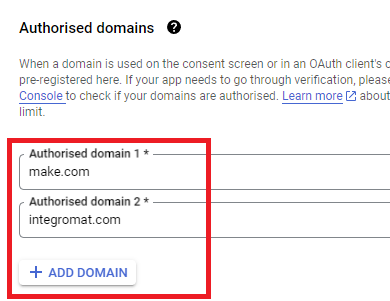
3. OAuth consent screen
Direct Link: https://console.cloud.google.com/apis/credentials/consent/edit
4. Create New Connection (HTTP, or respective Google module)
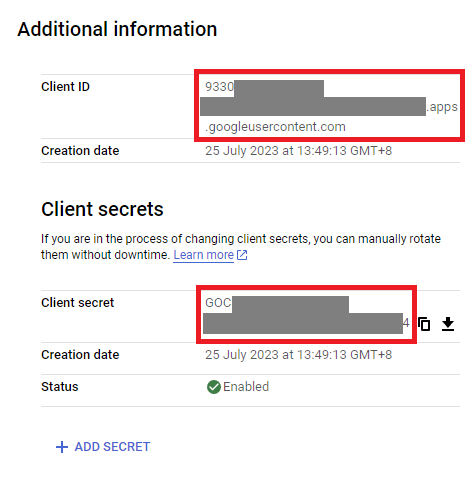
You can find the Client ID and Client Secret in the OAuth2 app you created in GCP, on the right-hand side of where you inserted the callback URLs in step 2:
Also see related topic: Gmail/Google Drive verification issues (error 400): how to solve
— @samliew