Hello,
I apologize as this is a very basic questions but I am new to Make and having trouble. Didn’t see anything on the forums that fit this scenario.
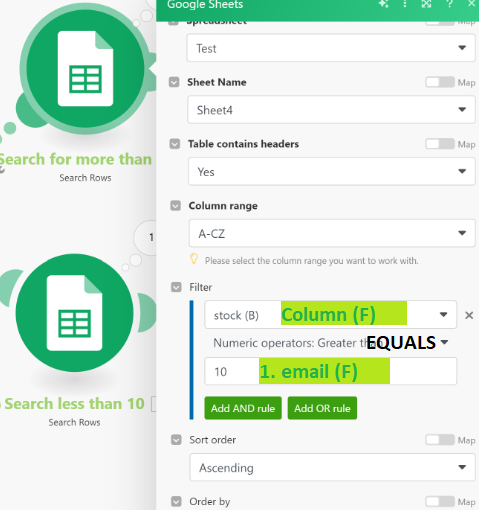
I am trying to filter out duplicate leads using Google Sheets. What I have come up with is this:
3 Distinct Google Sheets, “Initial Leads,” “Master Leads,” and “Ready Leads.”
What I would like to do is input my initial leads into the first sheet and check them against “master leads” for duplicates. The data that has no duplicates is then added as a row to “Master Leads” and “Ready Leads.” Then I would clear the data from initial leads until ready to go again.
My issue is with the route/filter. It is currently checking each email against every email instead of just checking for duplicates. For example, if [email protected] is present in both sheets, it will reject [email protected] but then pair it against the next email, let’s say [email protected]. Since this is not a match it will successfully route it and ends up adding dozens of duplicates. I’m assuming I’ve set this up wrong but I can’t figure out the right filter criteria. Does anyone have advice, or is there an even simpler way to do this?
Thank you in advance for the help, I really appreciate it. Obviously I am a beginner but this is all super interesting to me, albeit challenging.