Thanks and I was able to move forward. However, when adding all the information, which I verified through the make.com GPT, I get an 404 error when running the HTTP module. Any idea whats causing this, as to my knowledge it seems correct?
Setup:
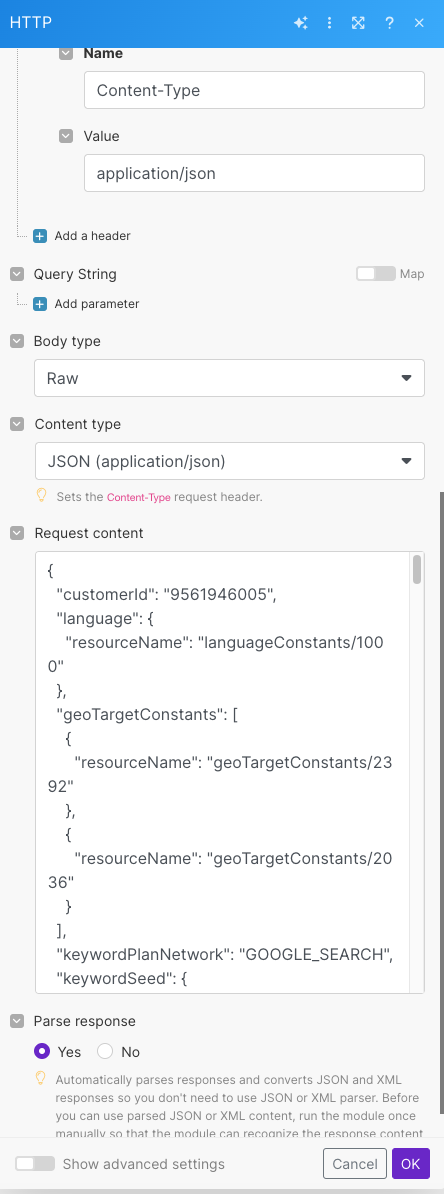
JSON request content
{
“customerId”: “9561946005”,
“language”: {
“resourceName”: “languageConstants/1000”
},
“geoTargetConstants”: [
{
“resourceName”: “geoTargetConstants/2392”
},
{
“resourceName”: “geoTargetConstants/2036”
}
],
“keywordPlanNetwork”: “GOOGLE_SEARCH”,
“keywordSeed”: {
“keywords”: [
“kinderslaapproblemen”,
“slaapproblemen baby”,
“slaaptips kinderen”,
“baby slaapt niet”,
“kind slaapt slecht”,
“slaaprituelen kind”,
“slaaptraining baby”,
“slaapcoach kinderen”,
“slaapgewoontes kinderen”,
“slaapproblemen peuter”,
“kind moeilijk in slaap”,
“slaaptherapie kind”,
“slaap tips baby”,
]
}
}
However, it get the 404 in my output:
[
{
“ca”: null,
“qs”: ,
“url”: “https://googleads.googleapis.com/v10/customers/9561946005/keywordPlans:generateKeywordIdeas”,
“data”: “{\n "customerId": "9561946005",\n "language": {\n "resourceName": "languageConstants/1000"\n },\n "geoTargetConstants": [\n {\n "resourceName": "geoTargetConstants/2392"\n },\n {\n "resourceName": "geoTargetConstants/2036"\n }\n ],\n "keywordPlanNetwork": "GOOGLE_SEARCH",\n "keywordSeed": {\n "keywords": [\n "kinderslaapproblemen",\n "slaapproblemen baby",\n "slaaptips kinderen",\n "baby slaapt niet",\n "kind slaapt slecht",\n "slaaprituelen kind",\n "slaaptraining baby",\n "slaapcoach kinderen",\n "slaapgewoontes kinderen",\n "slaapproblemen peuter",\n "kind moeilijk in slaap",\n "slaaptherapie kind",\n "slaap tips baby",\n ]\n }\n}”,
“gzip”: true,
“method”: “post”,
“headers”: [
{
“name”: “Authorization”,
“value”: “Bearer ya29.a0AXooCgtz7KUo_TpDNPLvbJjb3rGwnNZt0IFwgWe6-uNs1usjgcguNPUmgFcRN1BRJl5pLYaAzOHi8qUwnvB41TNHEkvOhPmtniqFRgLIbcZNS1aXF0eoijDxVl0DJBdUul2fubiq9Mg7CWvi0_pMnQ-4LjSkKbMFyluwaCgYKAUESARASFQHGX2MideBDi63cuom3xlhR2DnJVw0171”
},
{
“name”: “Content-Type”,
“value”: “application/json”
}
],
“timeout”: null,
“useMtls”: false,
“bodyType”: “raw”,
“contentType”: “application/json”,
“serializeUrl”: false,
“shareCookies”: false,
“parseResponse”: true,
“followRedirect”: true,
“useQuerystring”: false,
“followAllRedirects”: false,
“rejectUnauthorized”: true
}
]
[
{
“statusCode”: 404,
“headers”: [
{
“name”: “date”,
“value”: “Wed, 19 Jun 2024 09:22:26 GMT”
},
{
“name”: “content-type”,
“value”: “text/html; charset=UTF-8”
},
{
“name”: “server”,
“value”: “ESF”
},
{
“name”: “content-length”,
“value”: “1619”
},
{
“name”: “x-xss-protection”,
“value”: “0”
},
{
“name”: “x-frame-options”,
“value”: “SAMEORIGIN”
},
{
“name”: “x-content-type-options”,
“value”: “nosniff”
},
{
“name”: “alt-svc”,
“value”: “h3=":443"; ma=2592000,h3-29=":443"; ma=2592000”
},
{
“name”: “connection”,
“value”: “close”
}
],
“cookieHeaders”: ,
“data”: “\n\n \n <meta name=viewport content="initial-scale=1, minimum-scale=1, width=device-width">\n Error 404 (Not Found)!!1\n \n {margin:0;padding:0}html,code{font:15px/22px arial,sans-serif}html{background:#fff;color:#222;padding:15px}body{margin:7% auto 0;max-width:390px;min-height:180px;padding:30px 0 15px} > body{background:url(//www.google.com/images/errors/robot.png) 100% 5px no-repeat;padding-right:205px}p{margin:11px 0 22px;overflow:hidden}ins{color:#777;text-decoration:none}a img{border:0}@media screen and (max-width:772px){body{background:none;margin-top:0;max-width:none;padding-right:0}}#logo{background:url(//www.google.com/images/branding/googlelogo/1x/googlelogo_color_150x54dp.png) no-repeat;margin-left:-5px}@media only screen and (min-resolution:192dpi){#logo{background:url(//www.google.com/images/branding/googlelogo/2x/googlelogo_color_150x54dp.png) no-repeat 0% 0%/100% 100%;-moz-border-image:url(//www.google.com/images/branding/googlelogo/2x/googlelogo_color_150x54dp.png) 0}}@media only screen and (-webkit-min-device-pixel-ratio:2){#logo{background:url(//www.google.com/images/branding/googlelogo/2x/googlelogo_color_150x54dp.png) no-repeat;-webkit-background-size:100% 100%}}#logo{display:inline-block;height:54px;width:150px}\n \n \n
404. That’s an error.\n
The requested URL /v10/customers/9561946005/keywordPlans:generateKeywordIdeas was not found on this server. That’s all we know.\n”,
“fileSize”: 1619
}
]
Any idea what to correct in order to solve the 404?