Hi everyone,
I’m running into an issue when trying to connect my Gmail account to Make.com.
During the authentication step, I receive the following error:
You can’t sign in because MyEmailApp sent an invalid request. You can try again later, or contact the developer about this issue. Learn more about this error
If you are a developer of MyEmailApp, see error details.
Error 400: redirect_uri_mismatch
In my Google Cloud Console, I’ve configured the redirect URI as:
https://www.integromat.com/oauth/cb/google-restricted
However, Gmail authentication fails each time with the above error.
Before switching it, I want to confirm —
 Is
Is https://www.integromat.com/oauth/cb/google-restricted still the correct redirect URI for Gmail integrations in Make.com?
Or should I be using another one like https://www.integromat.com/oauth/cb/google or a region-specific URI (e.g. EU1)?
Any guidance or confirmation from the Make team or community members who recently set this up would be greatly appreciated.
Thanks in advance!
Welcome to the Make community!
Try inserting all the known redirect URIs below. That way you can reuse the same GCP app for all the Google Cloud APIs.
How to Connect and Use Google APIs in Make!
0. Prerequisites
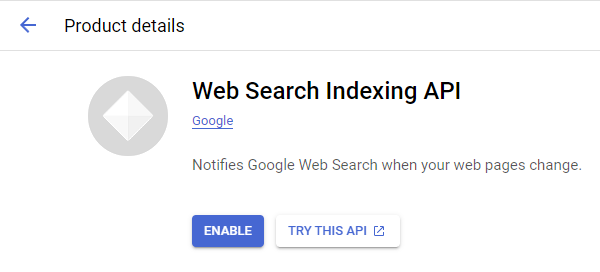
1. Enable Google APIs
2. OAuth Client
Direct Link: https://console.cloud.google.com/apis/credentials
-
2a. Create “OAuth client ID” Credentials
-
2b. Insert all the Google Redirect URIs for your app
Insert All Google Redirect URIs
Here are some commonly-needed redirect URIs you need for your Google Cloud Console OAuth app. If you set these up, you can reuse the same GCP app for other Google apps and modules on Make.
https://www.make.com/oauth/cb/oauth2
https://www.make.com/oauth/cb/google
https://www.make.com/oauth/cb/google/
https://www.make.com/oauth/cb/google-email
https://www.make.com/oauth/cb/google-custom
https://www.make.com/oauth/cb/google-restricted
https://www.make.com/oauth/cb/google-cloud-speech
https://www.make.com/oauth/cb/google-search-console
https://www.make.com/oauth/cb/google-analytics-4
https://www.make.com/oauth/cb/google-ads2
https://www.make.com/oauth/cb/google-ads2/
https://www.make.com/oauth/cb/youtube
https://www.make.com/oauth/cb/chrome
Including These Google Redirect URIs
You are also required to insert the legacy URLs below from the old Integromat system that not been migrated to Make yet (same as the above list, but replace “make” with “integromat”):
https://www.integromat.com/oauth/cb/oauth2
https://www.integromat.com/oauth/cb/google
https://www.integromat.com/oauth/cb/google/
https://www.integromat.com/oauth/cb/google-email
https://www.integromat.com/oauth/cb/google-custom
https://www.integromat.com/oauth/cb/google-restricted
https://www.integromat.com/oauth/cb/google-cloud-speech
https://www.integromat.com/oauth/cb/google-search-console
https://www.integromat.com/oauth/cb/google-analytics-4
https://www.integromat.com/oauth/cb/google-ads2
https://www.integromat.com/oauth/cb/google-ads2/
https://www.integromat.com/oauth/cb/youtube
https://www.integromat.com/oauth/cb/chrome
Note 1: Due to inconsistencies in Make’s implementation of the connections, there are two separate entries where has one is google and another ending in a forward slash google/ - you might need one or the other, so we have to use both!
Note 2: Once you’ve set these up, you can use/reuse the same Google OAuth App ID + Secret for all the supported Google connections and modules on Make - you’ll just have to enable the relevant Google APIs!
3. OAuth consent screen
Direct Link: https://console.cloud.google.com/apis/credentials/consent/edit
-
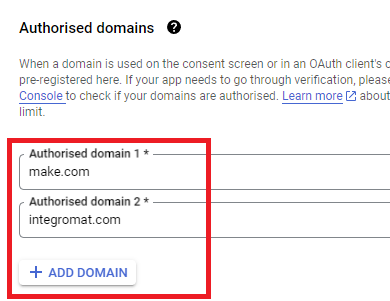
3a. Insert Two Authorised Domains
-
Insert make.com and integromat.com
-
Fill in other required fields
-
Click “Save and Continue”.
-
3b. Add All Scopes
-
Click “Add or Remove Scopes”
-
Select 100 “Rows per page”, for each page, check all the rows, OR
-
Manually type in the scopes you need
-
Click “Update” at the bottom
-
3c. Step through and go to dashboard
At the last step/page, click “BACK TO DASHBOARD” instead of “Prepare for Verification”

-
3d. Publish your GCP OAuth2 app
You will need to set your OAuth application to “Production”, otherwise the credentials expire very frequently.
-
To do this, go back to “OAuth consent screen”
-
Then click the “PUBLISH APP” button
-
Then click the “CONFIRM” button
4. Create New Connection (HTTP, or respective Google module)
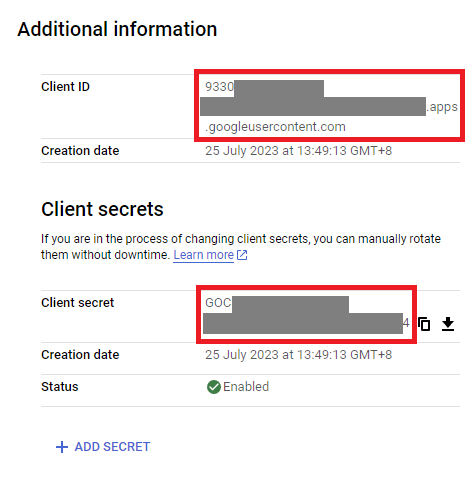
You can find the Client ID and Client Secret in the OAuth2 app you created in GCP, on the right-hand side of where you inserted the callback URLs in step 2:
Related Topics:
Hope this makes sense! If you have any more questions, just ask.
— @samliew
P.S.: investing some effort into the tutorials in the Make Academy will save you lots of time and frustration using Make!
Thank you so much man. It is working well.
No problem, glad I could help with "Redirect URI Mismatch — /oauth/cb/google-restricted when connecting Gmail"! 
As you have noticed, it is important to insert all the known redirect URIs correctly once so you won’t have to look at it again!
1. Which was the most helpful post in this thread?
The Make Community guidelines encourages users to try to mark helpful replies as solutions to help keep this forum organised. 
This marks the topic as solved, so that others can:
- save time when browsing the latest activity on the forum, and
- quickly jump to the solution in this topic
To do this, simply click the checkbox at the bottom of the post that is the most helpful in answering your question.
 Here’s a magic link to a list of your other “unsolved” topics:
 status:unsolved
2. Have you learnt something new?
Do bookmark this topic so you can easily find and return to this topic in future.

Here’s a magic link to a list of your bookmarks /my/activity/bookmarks!
3. Have a different/follow-up question? Start a new topic.
Creating a new topic for each question makes it easier for others with the same problem to search for answers. You are also more likely to receive help sooner as new topics are displayed first on the forum’s “new” page!
— @samliew