My goal is to maintain a stable and continuous connection between Make and my Google account (Gmail, Drive).
What is the problem?
I connected Make to my Google account (Gmail, Drive) before the rollout of the new faster connection feature. Since then, my Google connection in Make regularly disconnects without any clear reason.
Do you know what could be causing this issue and how I can fix it?
I would like to avoid reconnecting again, as this would require updating a large number of modules in my scenarios.
What have you tried so far?
Each time the issue occurs, I click Reauthorize and Verify in Connections section .
It temporarily resolves the problem, but only for a short period — usually a few weeks — before the connection drops again.
Here are some commonly-needed redirect URIs you need for your Google Cloud Console OAuth app. If you set these up, you can reuse the same GCP app for other Google apps and modules on Make.
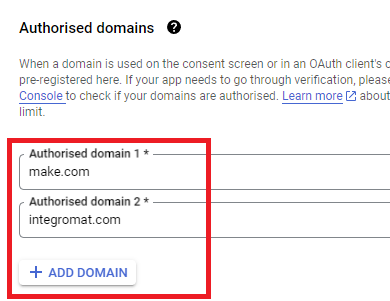
You are also required to insert the legacy URLs below from the old Integromat system that not been migrated to Make yet (same as the above list, but replace “make” with “integromat”):
Note 1: Due to inconsistencies in Make’s implementation of the connections, there are two separate entries where has one is google and another ending in a forward slash google/ - you might need one or the other, so we have to use both!
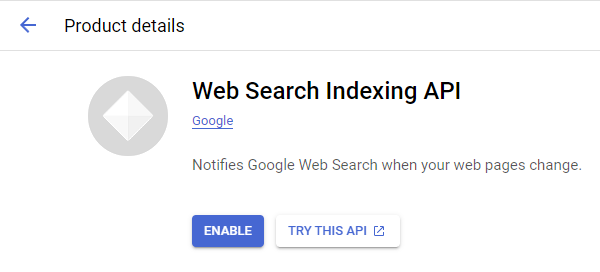
Note 2: Once you’ve set these up, you can use/reuse the same Google OAuth App ID + Secret for all the supported Google connections and modules on Make - you’ll just have to enable the relevant Google APIs!
4. Create New Connection (HTTP, or respective Google module)
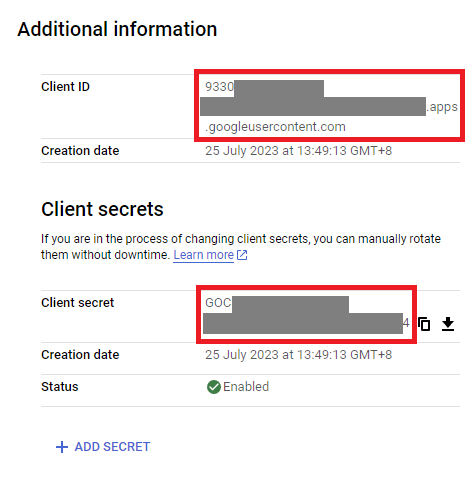
You can find the Client ID and Client Secret in the OAuth2 app you created in GCP, on the right-hand side of where you inserted the callback URLs in step 2:
Thanks a lot, but that’s exactly what I did.
The issue is that the connection fails about once a month even though I don’t change anything. I just need to reauthorize it and then everything works again. It’s really annoying.
Great, however since I can’t see what exactly you did (or didn’t), you’ll need to redo the connection and show screenshots of each step so that I can walk through it.
Urgent / Private Support
You can use the Hire a Pro category to post a request for private 1-to-1 assistance via video call/screenshare/private messaging/etc. This may help you get your issue resolved faster especially if it is urgent or contain sensitive information. It is important to post your request in the Hire a Pro category, as forum members are not allowed to advertise their services in other categories like here (even if it’s free/unpaid). Posting in the Hire a Pro category will allow other members to assist you over other forms of communication.
How to Message Another User
You can use the private messaging feature to directly reach out to other forum members. To do this, go to your inbox, and click on the “New Message” button on the right.
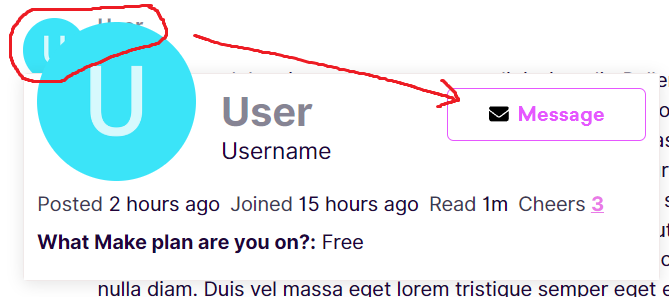
Alternatively, you can also click on clicking on their username/avatar, then click on the “Message” button in the popup card.
Note: New forum users do not have permissions to send private messages. You can earn trust levels by being active on this forum.
 What is your goal?
 What is the problem?
 What have you tried so far?