Why this automation exists
Scheduling meetings usually looks simple, but in reality it takes time.
You check calendars, find a free slot, send invites, add agendas, and then remember to follow up. When this happens multiple times a day, it adds up.
The goal of this automation is simple:
handle meeting-related tasks using a single WhatsApp voice message. Instead of opening Gmail or Google Calendar, the user sends a voice note like:
“Book a product meeting with Jumar.”
From there, the workflow takes care of the rest
What this automation does (in practice)
When a voice message is sent on WhatsApp, the scenario can:
- Convert the voice message into text
- Understand what the user wants (meeting or email)
- Create a Google Calendar event when needed
- Send confirmation back on WhatsApp (text + voice note)
- Send emails when the request is email-related
All actions are triggered only by the voice instruction.
Tools involved
- WhatsApp Cloud API (via Meta Developer account)
- OpenAI (for transcription and instruction parsing)
- Google Calendar
- Email service
- ElevenLabs (text-to-speech)
Scenario overview

The scenario starts by watching incoming WhatsApp messages.
This includes both text and audio messages, but this setup focuses on audio input.
1. Watching WhatsApp responses
The first module listens for new WhatsApp responses.
This requires a verified Meta Developer account and an approved WhatsApp app.
Once connected, every incoming message is captured by the scenario.
2. Downloading the audio message
If the incoming message is an audio note, it is downloaded using the WhatsApp media download step.
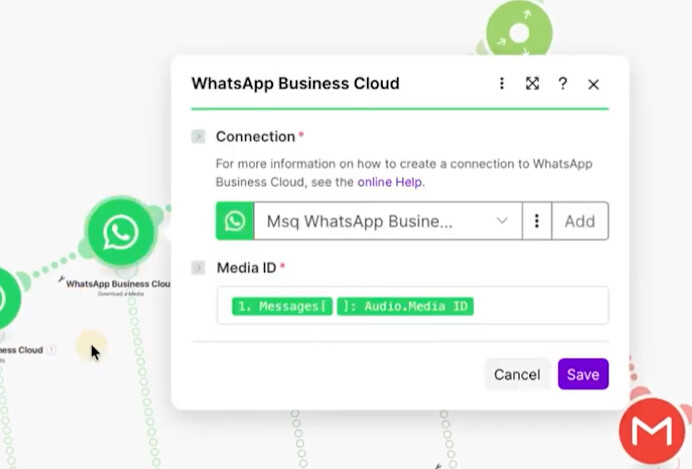
This audio file becomes the input for the next stage.
3. Converting voice to text (transcription)
The audio file is sent to OpenAI for transcription.
At this point, we now have:
-
The original voice message
-
The text version of what the user said
This transcript is used in all following steps.

4. Understanding the user’s intent
A second OpenAI step is used to interpret the instruction, not just read the text.
For example:
-
“Book a meeting” → calendar action
-
“Send an email” → email action
Based on this interpretation, the scenario assigns a result type:
-
Type 0 → Meeting-related request
-
Type 1 → Email-related request

This decides which route the scenario will follow.
Route 1: Meeting scheduling flow (Result Type 0)
When the instruction is about scheduling a meeting, the scenario:
- Calculates:
-
Start time
-
End time
-
Duration
- Creates a Google Calendar event

Adds meeting details and agenda
WhatsApp confirmation (text)
A WhatsApp text message is sent with:
-
Meeting date and time
-
Calendar confirmation
-
Any additional details

WhatsApp confirmation (voice note)
To keep the interaction natural, a voice response is also sent.
Steps involved:
- OpenAI generates the confirmation text
- ElevenLabs converts text to speech
- Audio is converted to Opus format (required for WhatsApp voice notes)
- Media is uploaded and sent via WhatsApp API
An HTTP module is used here instead of the default WhatsApp module, because WhatsApp requires voice=true to deliver messages as real voice notes.

Route 2: Email-related flow (Result Type 1)
If the voice instruction is about sending an email:
- OpenAI generates:
- Email subject
- Email body (HTML)
-
The email is sent to the recipient
-
A voice note confirmation is also generated and delivered


This keeps the experience consistent—every voice request gets a voice response.
Why HTTP is used for voice notes
The official WhatsApp module allows sending audio files, but not voice notes.
To send proper voice notes:
- The WhatsApp API requires voice=true
- This is only possible through an HTTP request following official API documentation
Final outcome
With this setup:
- The user never opens Calendar or Gmail
- Everything starts from WhatsApp
- Voice instructions are enough to trigger real actions
- The system responds the way a human assistant would

This automation is not about replacing people.
It’s about removing repetitive steps that slow down daily work.
Once set up, it quietly runs in the background and handles routine requests triggered by simple voice messages.